How I Built My First Flutter App with Zero Tutorials
It was February 2022. I was in the first year of my Computer Science degree, sitting through the standard college curriculum of textbook theory and legacy code.
I didn't just want to write command-line programs that output text to a console. I wanted to build something real—something I could tap, swipe, and actually carry around in my pocket.
Everyone around me gave the exact same advice:
"Go on YouTube, search for a 40-hour Flutter masterclass, and just code along."
I knew where that road leads: Tutorial Hell.
You watch an instructor type for 40 hours, you copy their keystrokes, the app works, and the moment you close the video to build your own thing, your mind goes completely blank. You didn't learn how to build—you learned how to type what someone else told you to type.
So I made a rule for myself: Zero video tutorials.
No courses. No playlists. Just the raw official Flutter documentation, a fresh code editor, and Stack Overflow for when things inevitably blew up.
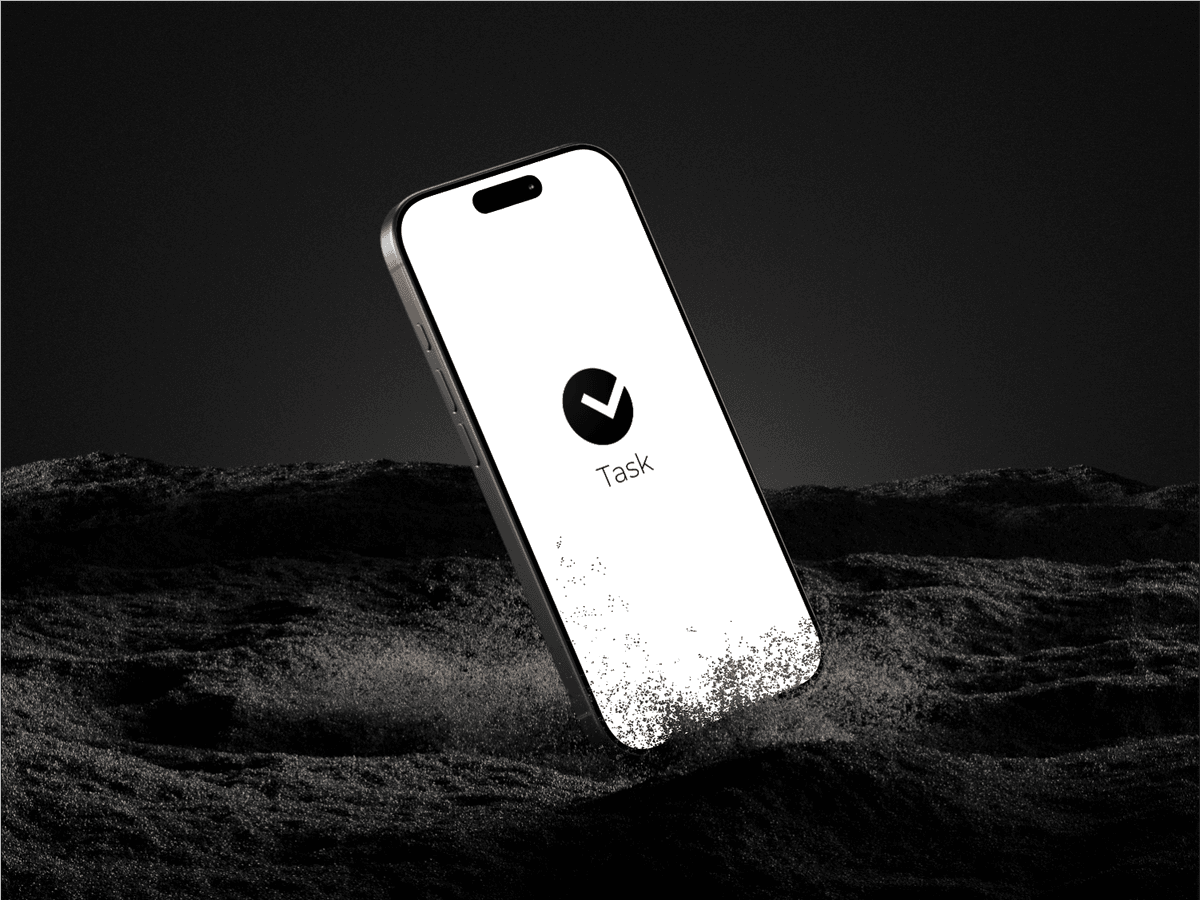
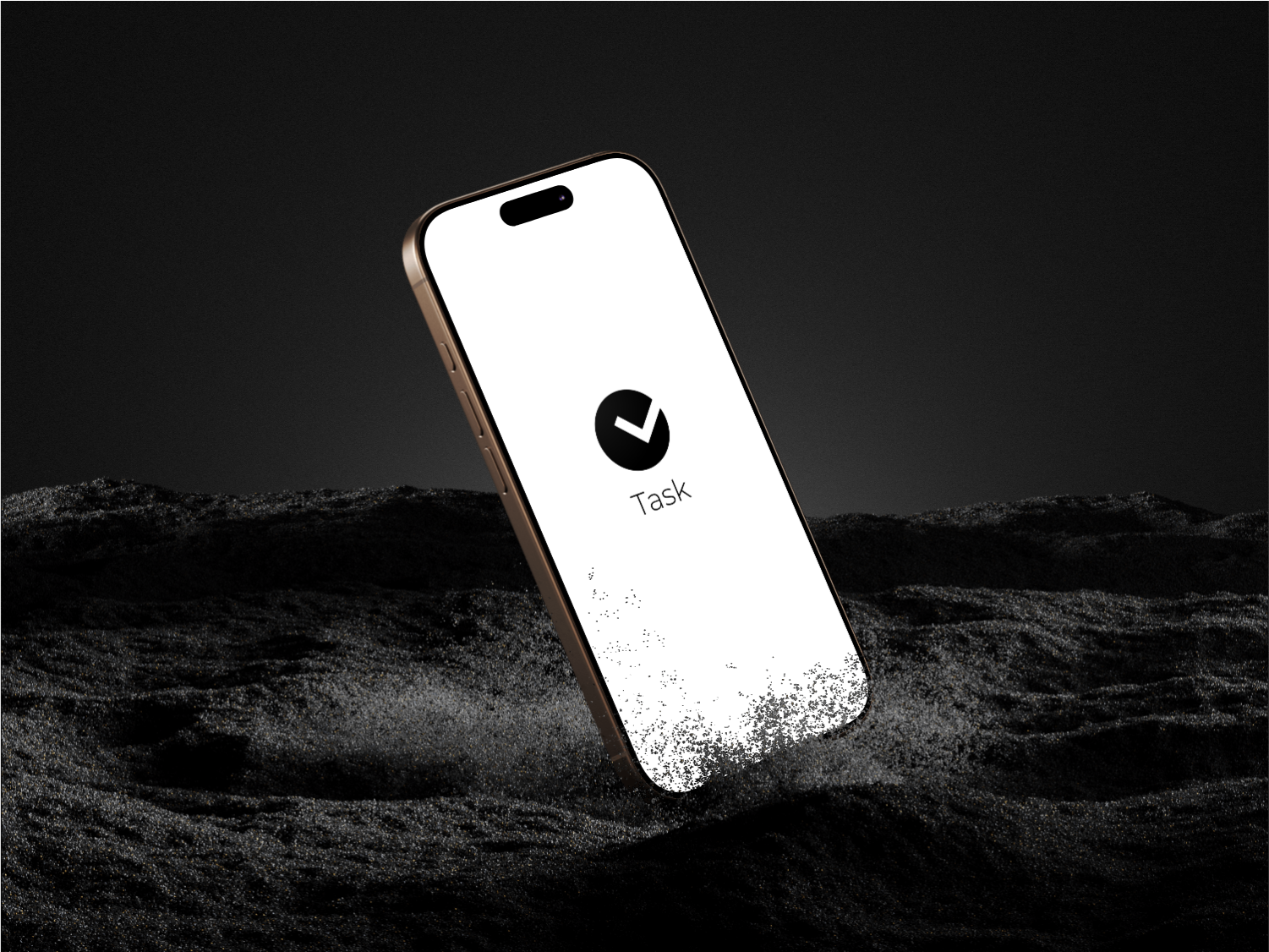
That's how my first app, Task, was born.
The Vision: Aggressive Minimalism
Before writing any code, I asked myself why the world needed another to-do app.
The answer was simple: every to-do app on the Play Store drove me crazy.
You open an app just to jot down a grocery item, and it hits you with:
- "Sign in with Google or create an account"
- "Allow push notifications, location, and contacts"
- "Upgrade to Premium to create more than 3 lists"
- Popups, sync loaders, and twenty dropdown menus.
I wanted the exact opposite: radical, distraction-free simplicity.
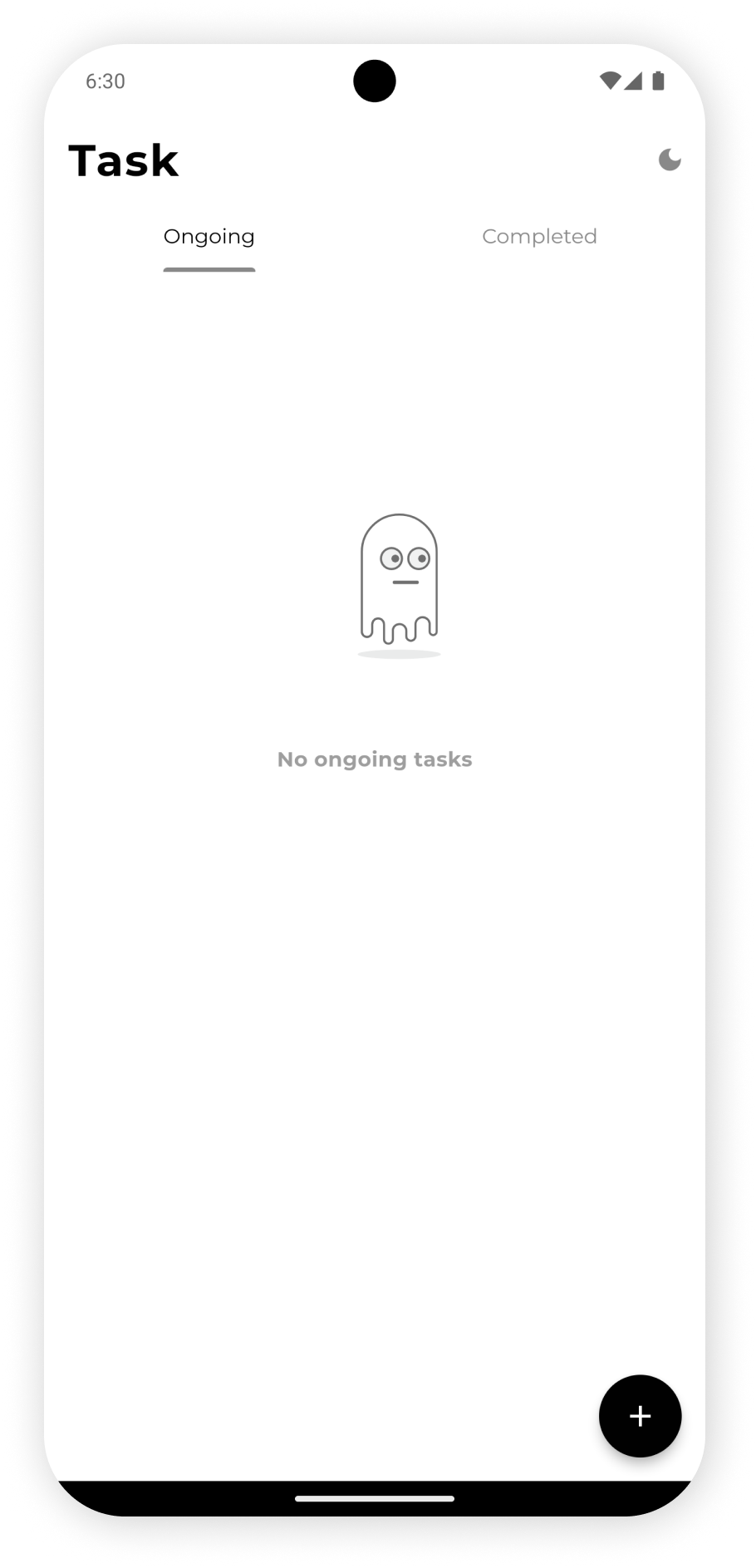
- You open the app: no login, no splash delay.
- You tap
+: type your task. - Optional: tap the clock icon to set a reminder using a circular time-picker.
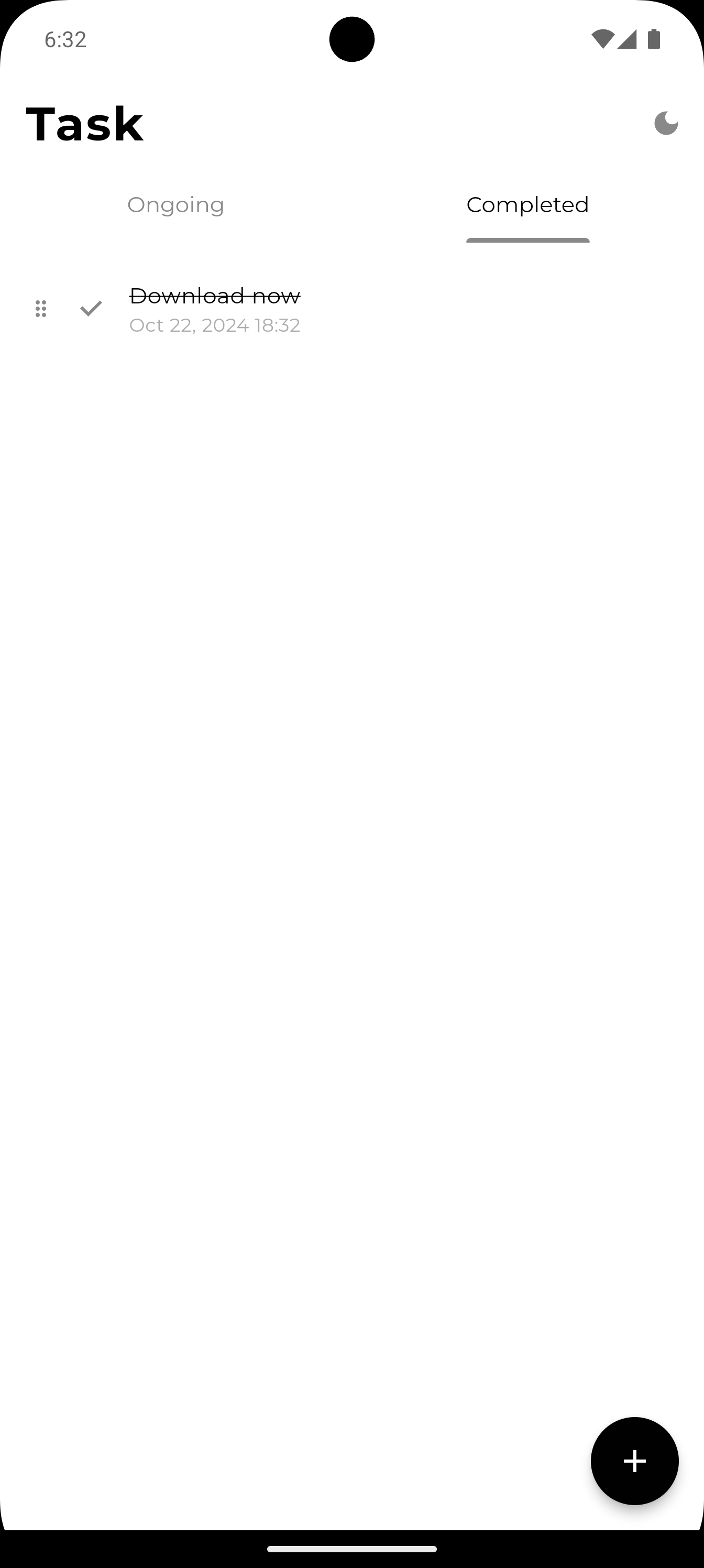
- Done? Tap the circle or swipe it away.
- Pure monochrome: crisp light mode for daylight, OLED pitch-black for late-night grind sessions.
Welcome to Flutter: Everything is a Widget (And Everything Breaks)
Coming into Flutter with zero Dart knowledge was an immediate reality check.
1. The Parenthesis Nightmare
In web dev, you have HTML and CSS. In Flutter, your entire UI is a tree of nested constructor calls. Within two hours, my code looked like this:
Scaffold(
  body: SafeArea(
    child: Padding(
      padding: const EdgeInsets.all(16.0),
      child: Column(
        children: [
          Row(
            children: [
              Expanded(
                child: Container(
                  // 14 closing parentheses later...
                ),
              ),
            ],
          ),
        ],
      ),
    ),
  ),
);One missing comma or mismatched parenthesis and the Dart compiler would yell at me in languages I didn't yet understand. But forcing myself to read the compiler error messages—rather than glancing at a tutorial screen—trained my eyes to read structural trees faster than anything else.
2. The Checkbox That Refused to Check
I built the task item. I clicked the circular checkbox. Nothing happened.
I clicked it again. Still nothing.
I checked my logic—the boolean was toggling in memory, but the screen stayed frozen. That was my introduction to Flutter's core mental model: StatelessWidget vs. StatefulWidget and the magic of:
setState(() {
  task.isCompleted = !task.isCompleted;
});Reading Flutter's official docs on reactive UI architecture made the lightbulb go off. In Flutter, UI = f(state). Once you grasp that single concept, you stop fighting the framework and start dancing with it.
3. The Dreaded Yellow & Black Stripes
Every Flutter beginner remembers their first RenderFlex overflowed by 48 pixels.
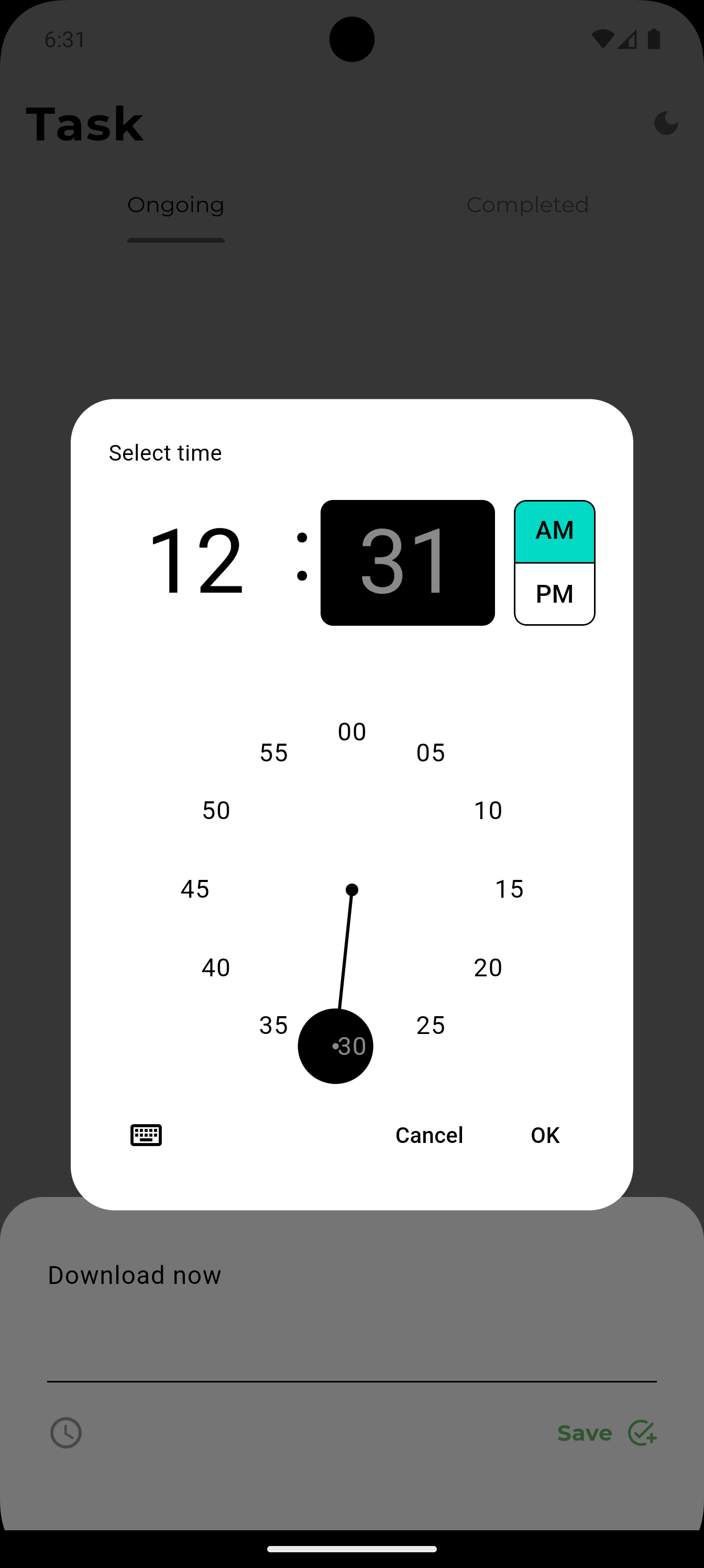
I added an analog time picker modal, and suddenly the keyboard popped up from the bottom and painted hazard tape across my entire screen.
Stack Overflow was my lifeline here. Instead of copying a quick snippet, I read the explanations about layout constraints: constraints go down, sizes go up, parent sets position. Wrapping inputs with SingleChildScrollView and understanding Spacer vs Expanded turned layout nightmares into intuitive layouts.
Polishing the Details
Because I wasn't rushing through an online course checklist, I spent hours obsessing over the tiny micro-interactions that make an app feel premium:
1. Dismissible Gestures
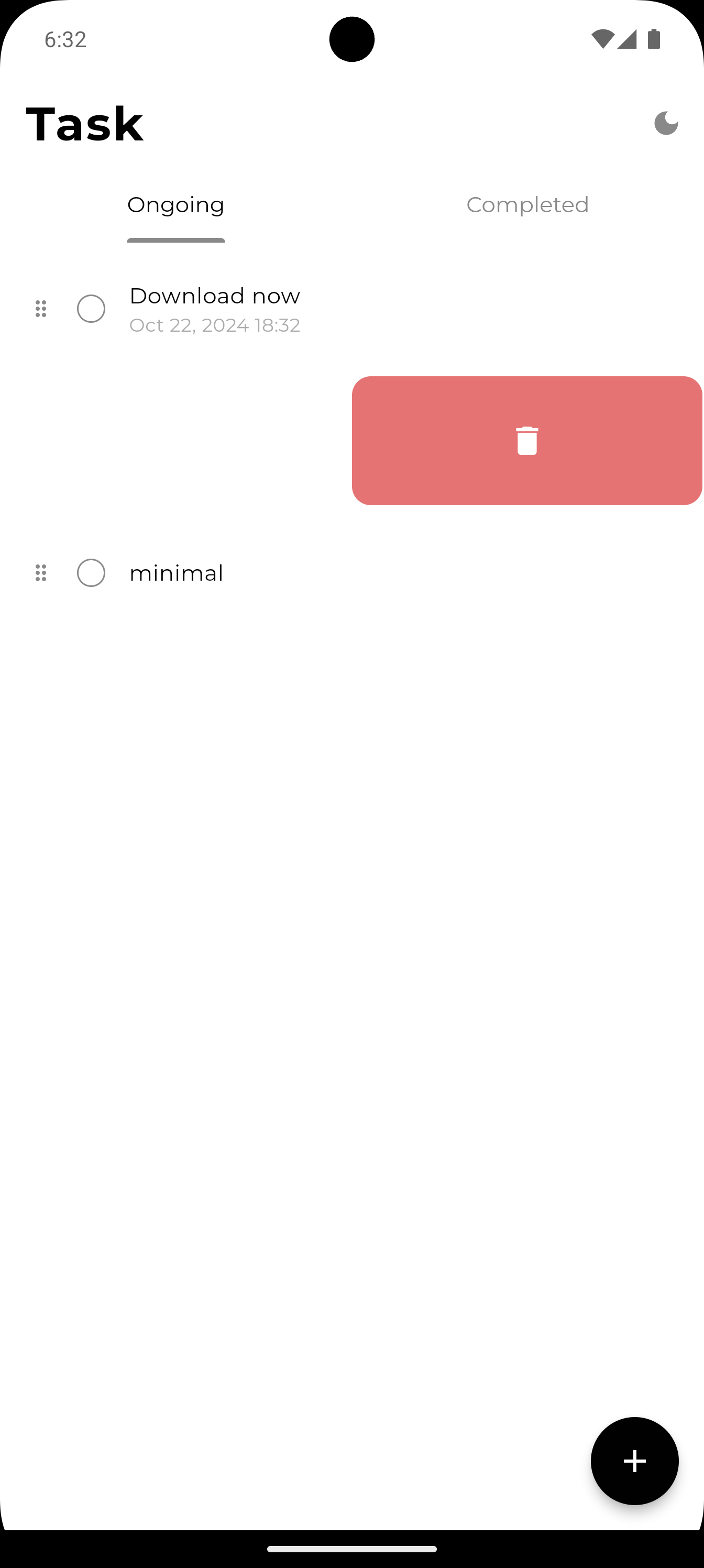
Instead of requiring users to tap a tiny delete button, I implemented Flutter's native Dismissible widget. Swiping a task item to the right slides out a clean coral-red delete action that cleanly vaporizes the task from the list.
2. Analog Clock Picker
Most basic to-do apps just let you type a time string into a text box. I wanted a clock dial where users can visually pick the exact hour and minute with a smooth radial selector.
3. The Friendly Ghost
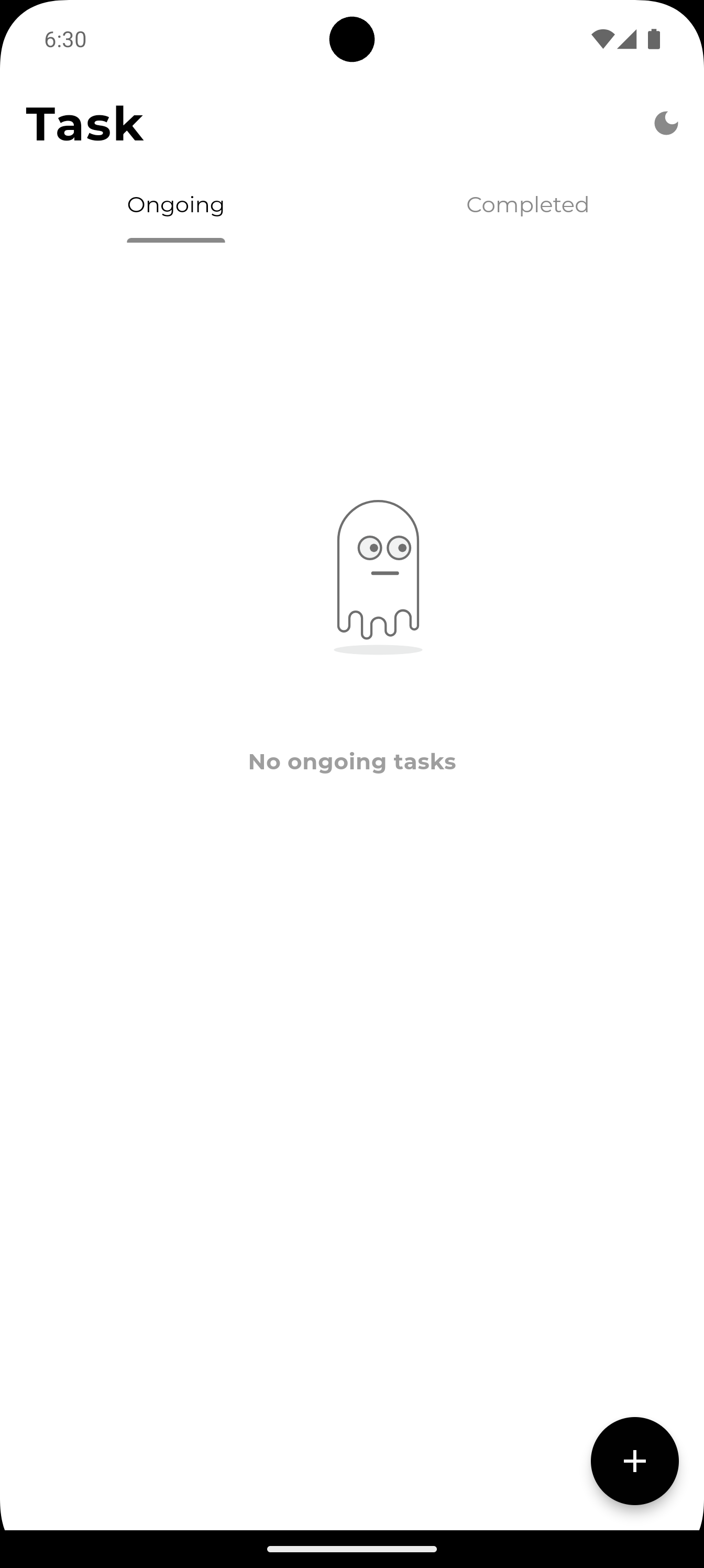
When your task list is completely empty, staring at a blank white screen feels sterile. I added a custom ghost doodle that pops up with a deadpan stare: "No ongoing tasks." It turned an empty list into a small moment of delight.
The High of Running the Release APK
After days of tinkering, reading docs, and fixing bugs, the moment finally came:
flutter build apk --releaseWatching Gradle churn through compilation steps, spitting out build/app/outputs/flutter-apk/app-release.apk, was one of the best moments of my developer journey.
I connected my POCO F1, transferred the file, hit Install, and there it was: an app I imagined in my head, designed with zero templates, and built without a single tutorial, running smoothly at 60 FPS under my thumb.
The next day in college, passing the phone around to friends and watching them use an app I built from scratch felt ten times better than acing any written exam.
Try It Yourself
The original release build from early 2022 is preserved exactly as it was:
- 📥 Download APK: app-release.apk (Direct Download)
- 💼 Portfolio Case Study: View the full project showcase in my Work Section.
Why You Should Ditch Tutorials for Your Next Project
If you're starting a new technology—whether it's Flutter, React, Go, or Rust—here is my honest advice:
- Tutorials give you the illusion of competence. Watching someone code makes you feel like you know how to build. You don't. You only know when your hands are on the keyboard fixing your own mistakes.
- Official documentation is written by the framework authors. They teach you the architecture and design philosophy, not just quick shortcuts.
- Stack Overflow teaches you how to articulate problems. When you search for why something broke, you learn the terminology, the edge cases, and the community patterns.
- Build something small that you actually want to use. A simple app you care about is infinitely more valuable than a clone of Netflix or Spotify that you abandon halfway through.
Pick an idea, open the docs, embrace the broken builds, and start shipping.